


 Watch video






 Sign in with Google
YouTube Strategy
Optimize YouTube uploads for more views: a step-by-step guide

Uploading a YouTube video is about more than just hitting the “Upload” button. If you want to maximize your reach and get more views, every detail counts.
In this guide, you’ll learn how to upload YouTube videos for more views by optimizing every setting and tweak just like successful creators do. From crafting compelling titles and descriptions to designing custom thumbnails and using advanced features, this article covers everything you need to set your video up for success.

Get an unfair advantage on YouTube
Give your YouTube channel the upper hand and easily optimize for more views, more subs, and more of every metric that matters.
Table of Contents
- Why uploading from desktop matters
- Craft titles that demand clicks
- Write descriptions that boost discoverability
- Create custom thumbnails that stop scrolling
- Organize your videos with playlists
- Set audience and content restrictions carefully
- Disclose paid promotions and altered content
- Use chapters to boost search visibility
- Leverage featured places and automatic concepts
- Add tags to help new channels get discovered
- Know the extra settings but don’t overcomplicate
- Enable shorts remixing for extra exposure
- Choose the right category and manage comments
- Use monetization settings wisely
- Add video elements like end screens to increase views
- Check for copyright issues before publishing
- Publish strategically for maximum views
- Final thoughts
Optimize YouTube uploads by uploading from desktop
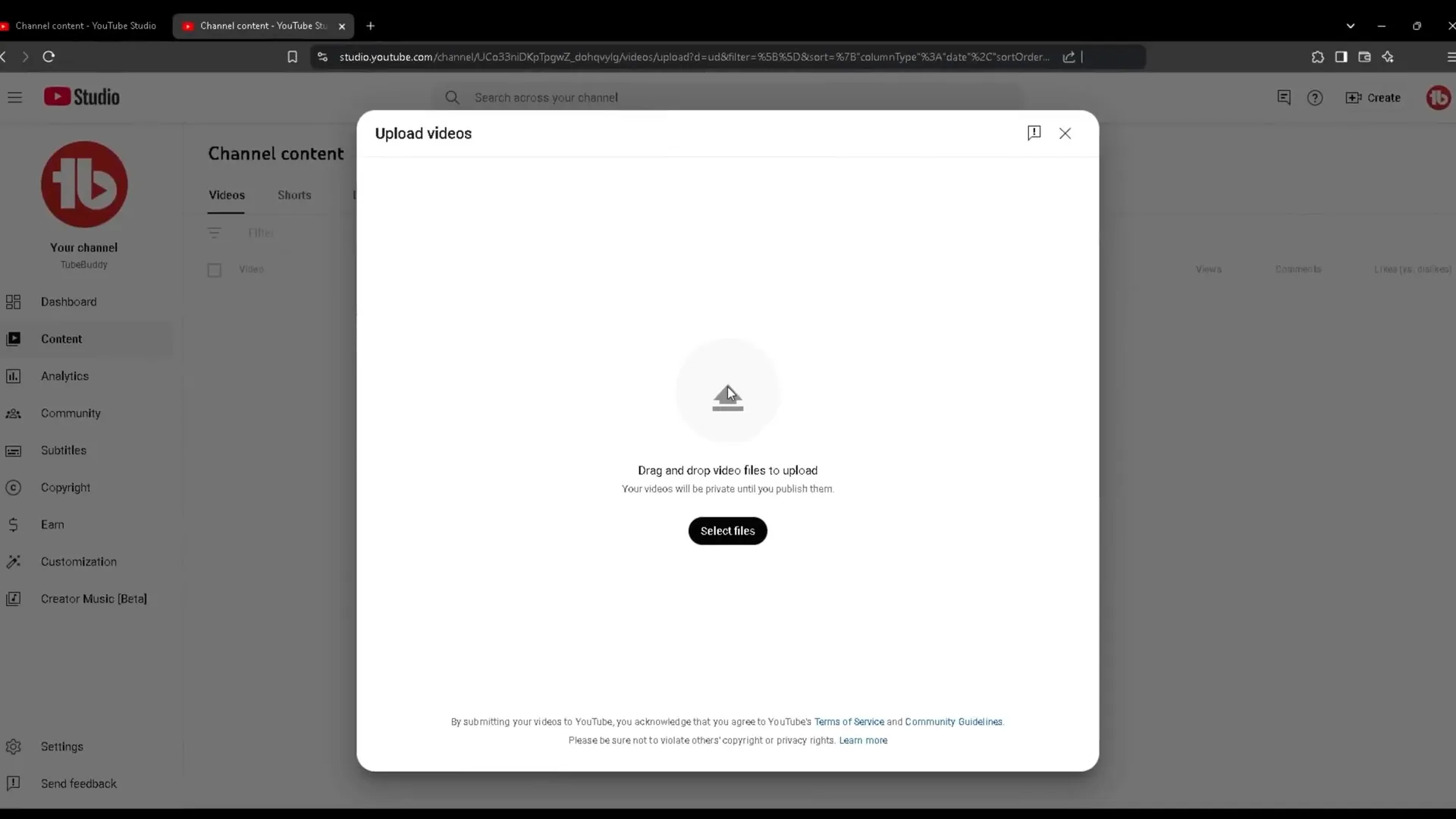
First things first: always upload your videos from a desktop computer, not a mobile device. The desktop uploader gives you access to advanced settings that are not available on the mobile app, allowing you to fully optimize your video for views.
Craft titles that demand clicks
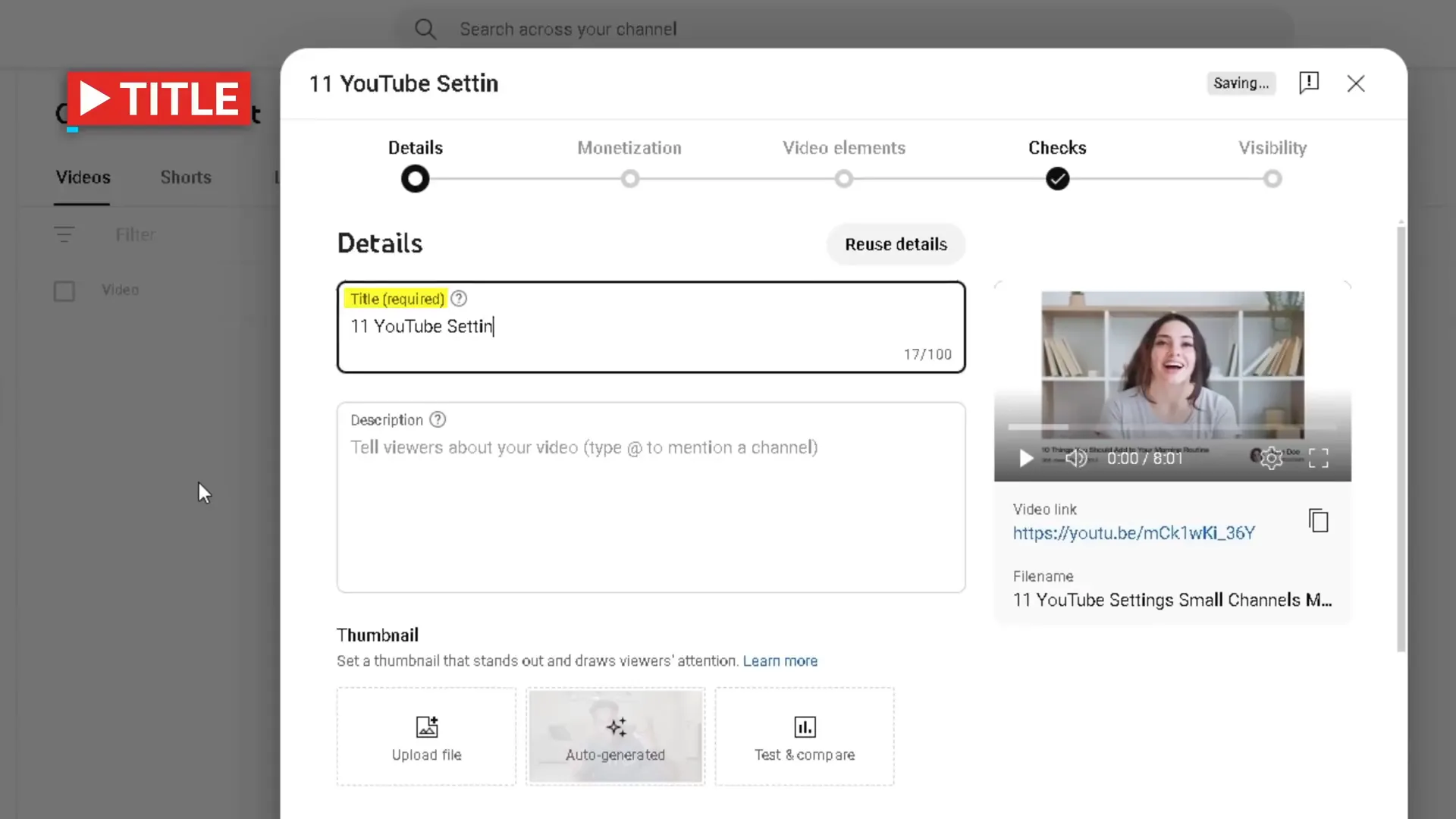
The title is the first thing potential viewers see, so it needs to grab attention, be relevant, include important keywords, and spark curiosity. Titling is an art, but here are some key tips:
- Keep it short: Titles longer than 70 characters get cut off, and studies show the best-performing videos have 53 characters. Which is to say, when in doubt, shoot for between 50 and 55.
- Use keywords: Include main keywords that describe your content to help with searchability.
- Create curiosity: Make viewers want to click by hinting at valuable or intriguing content.
If you find it challenging to create titles, consider using resources like Creator Hooks, a free newsletter that explains the psychology behind the best YouTube titles.
Write descriptions that boost discoverability
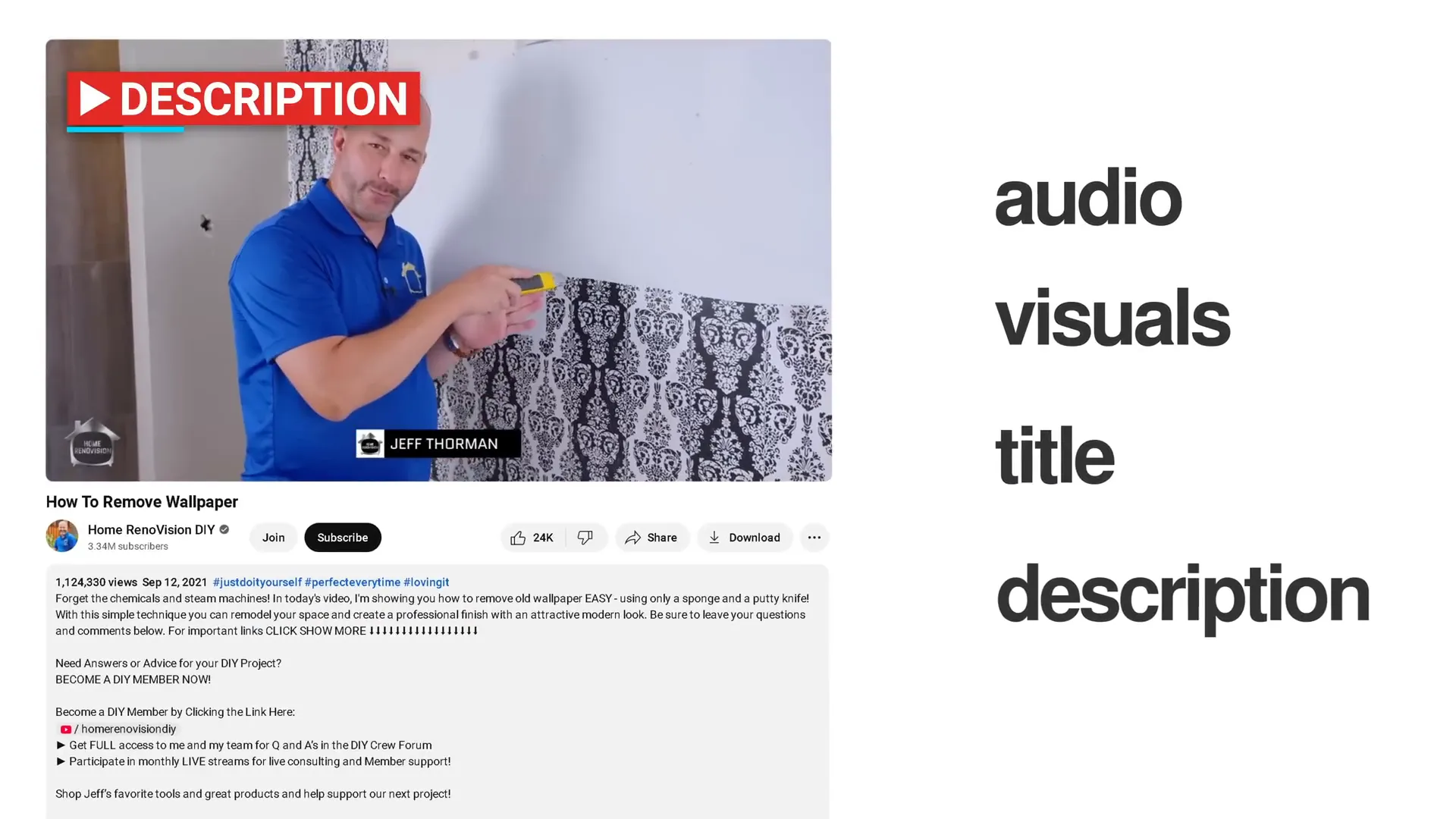
Your video description should clearly explain what your video is about and include relevant keywords. YouTube’s algorithm analyzes your video’s audio, visuals, title, and description to understand its content and recommend it to the right audience.
A great way to create an effective description is to copy and paste your video transcript into a tool like ChatGPT to help craft a detailed, keyword-rich description.
Create custom thumbnails that stop scrolling
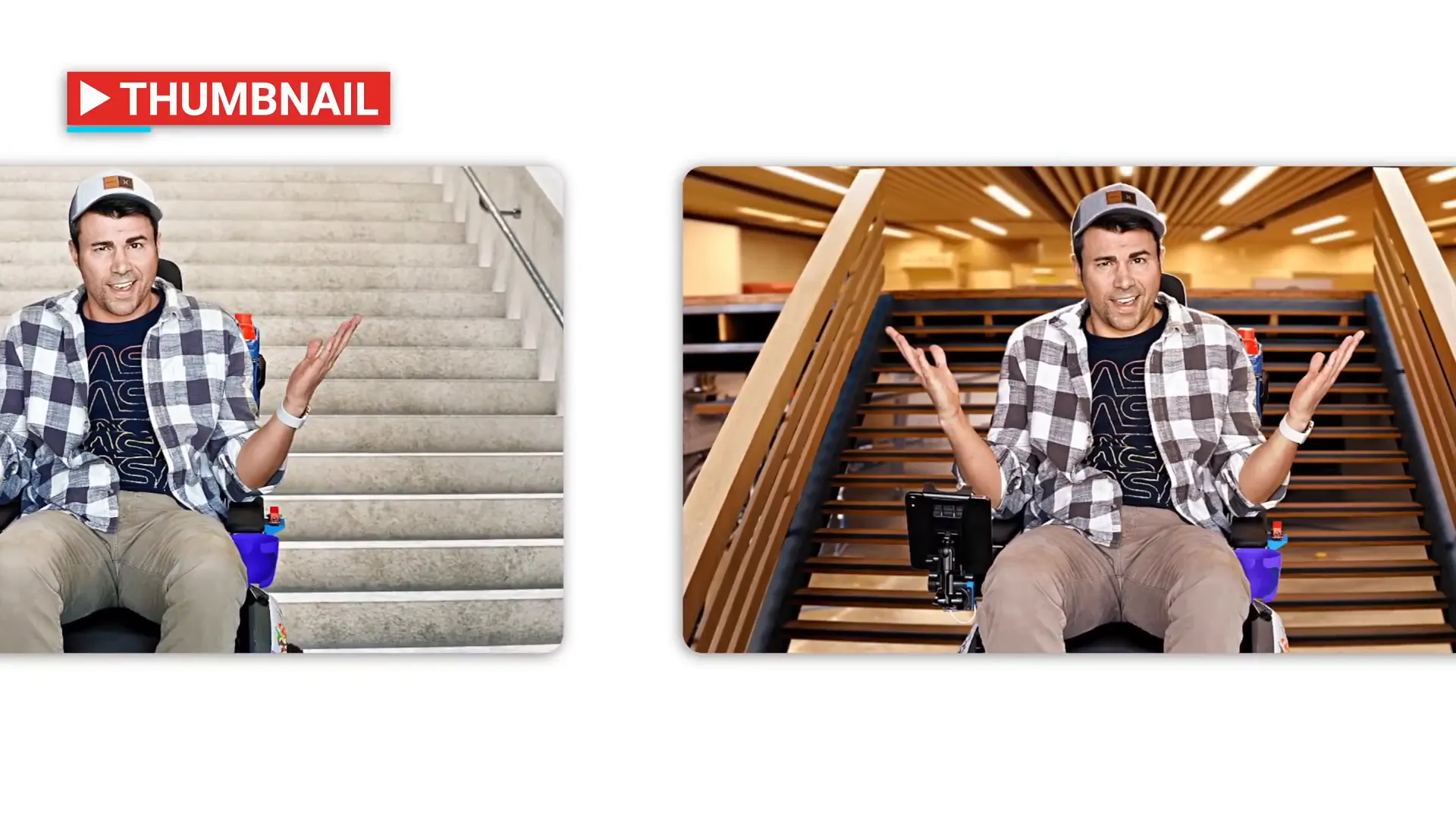
Thumbnails are crucial since 90% of top-performing videos have custom thumbnails. Avoid relying on auto-generated thumbnails, which are often unappealing. Instead:
- Take multiple high-quality photos during filming to have options for your thumbnail.
- Use simple design tools like Canva if you’re not skilled with a pro tool like Photoshop.
- Consider hiring a designer from platforms like Fiverr or YTjobs for more polished thumbnails, with prices ranging from $5 to $100+.
A strong thumbnail can be the difference between someone clicking your video or scrolling past it. Take inspiration from successful videos in your niche to craft eye-catching thumbnails.
Organize your videos with playlists
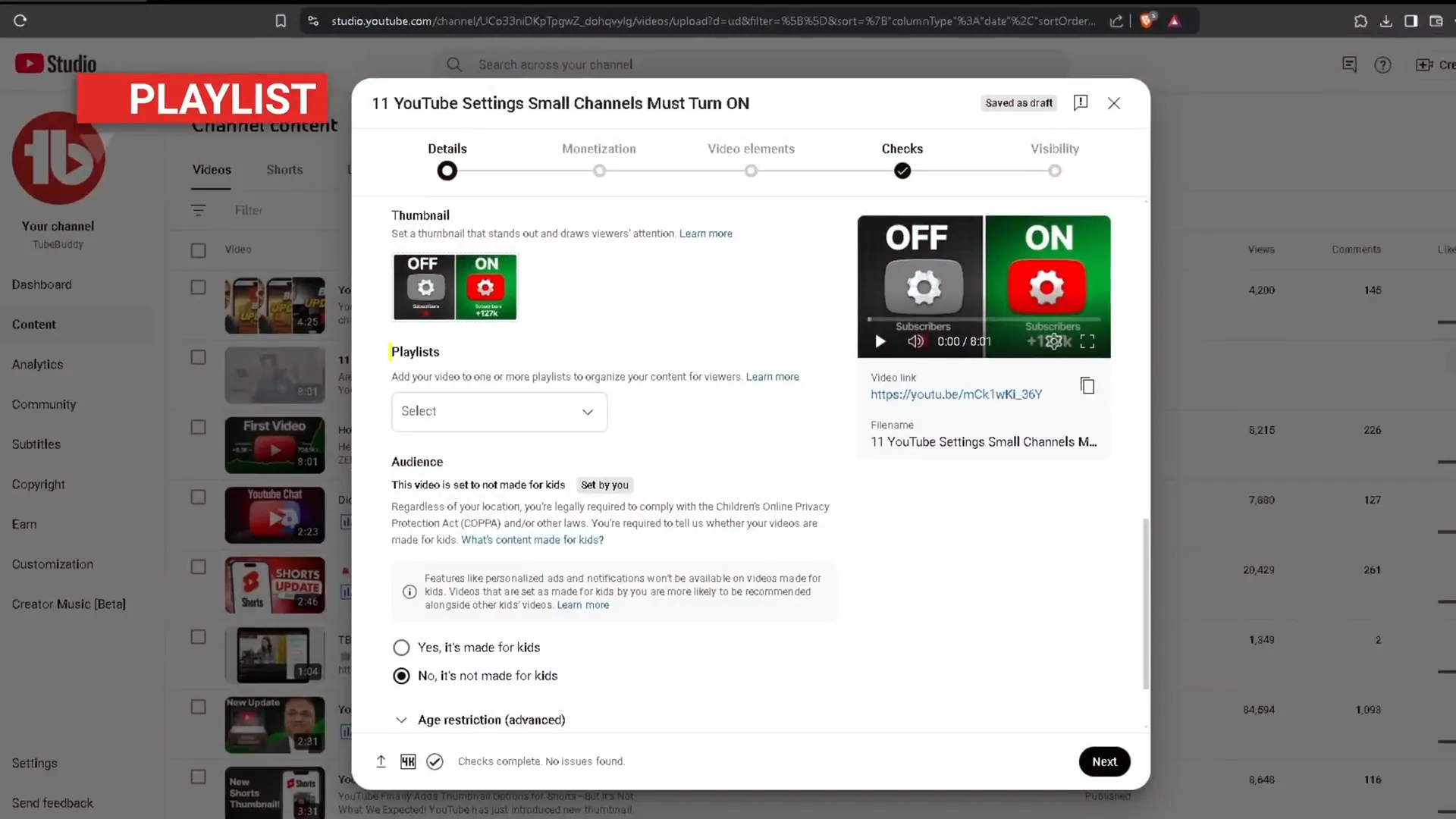
Add your video to a playlist to help viewers find related content easily. Playlists group videos around key themes or series and can improve watch time. For inspiration, look at how creators like Ryan Trahan use playlists to organize their videos.
Set audience and content restrictions carefully
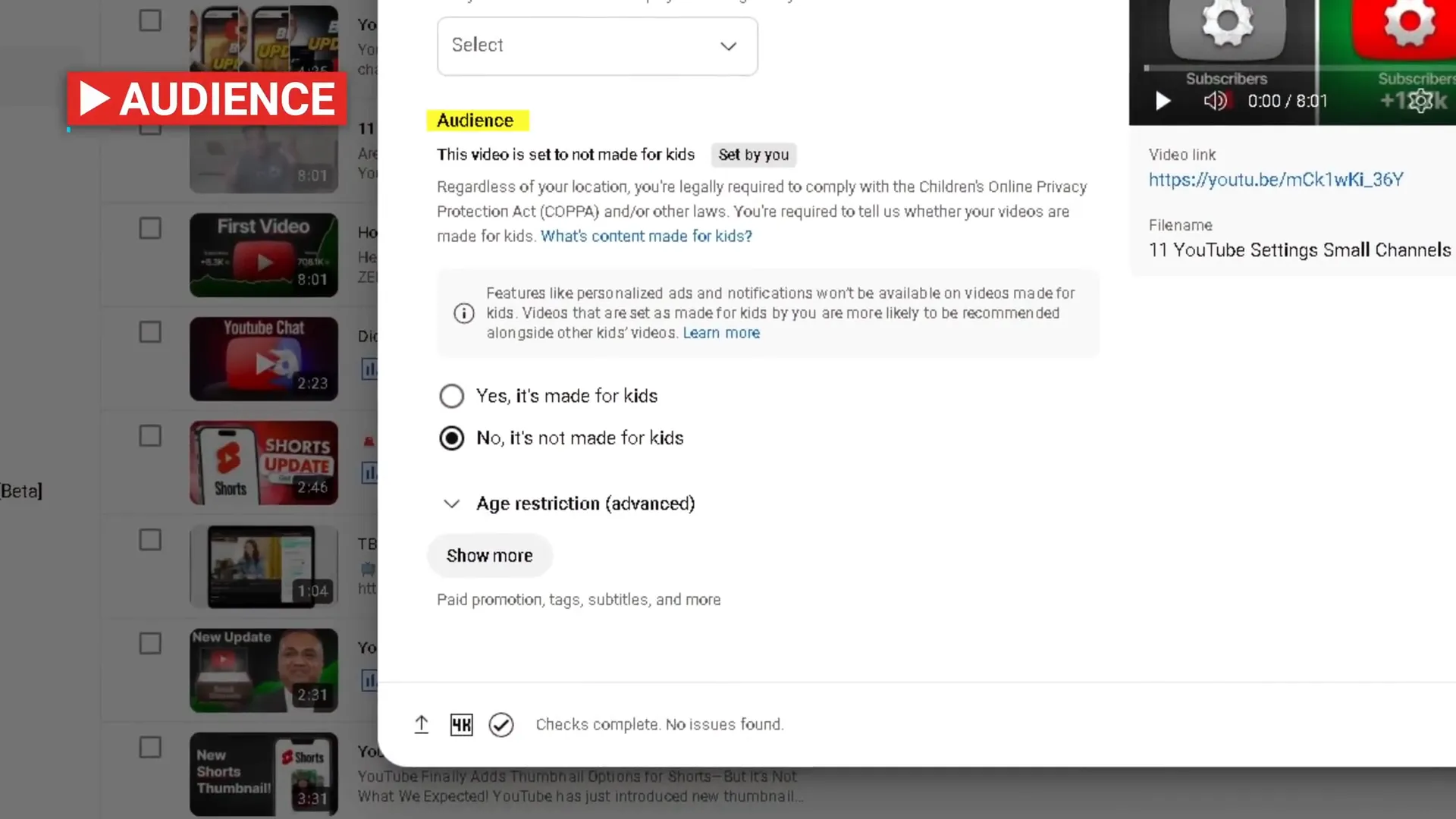
You need to specify if your content is made for kids. Selecting “made for kids” disables features like personalized ads, comments, and notifications but makes your video more likely to be recommended alongside other children’s content.
YouTube provides a helpful chart to decide if your video fits the “made for kids” category, which includes content directly aimed at children, such as games or storytelling. Content with mature themes should be marked as “not made for kids.”
You can also age-restrict videos to prevent viewers under 18 from watching, but be cautious: this reduces your video’s reach and potential views.
Disclose paid promotions and altered content
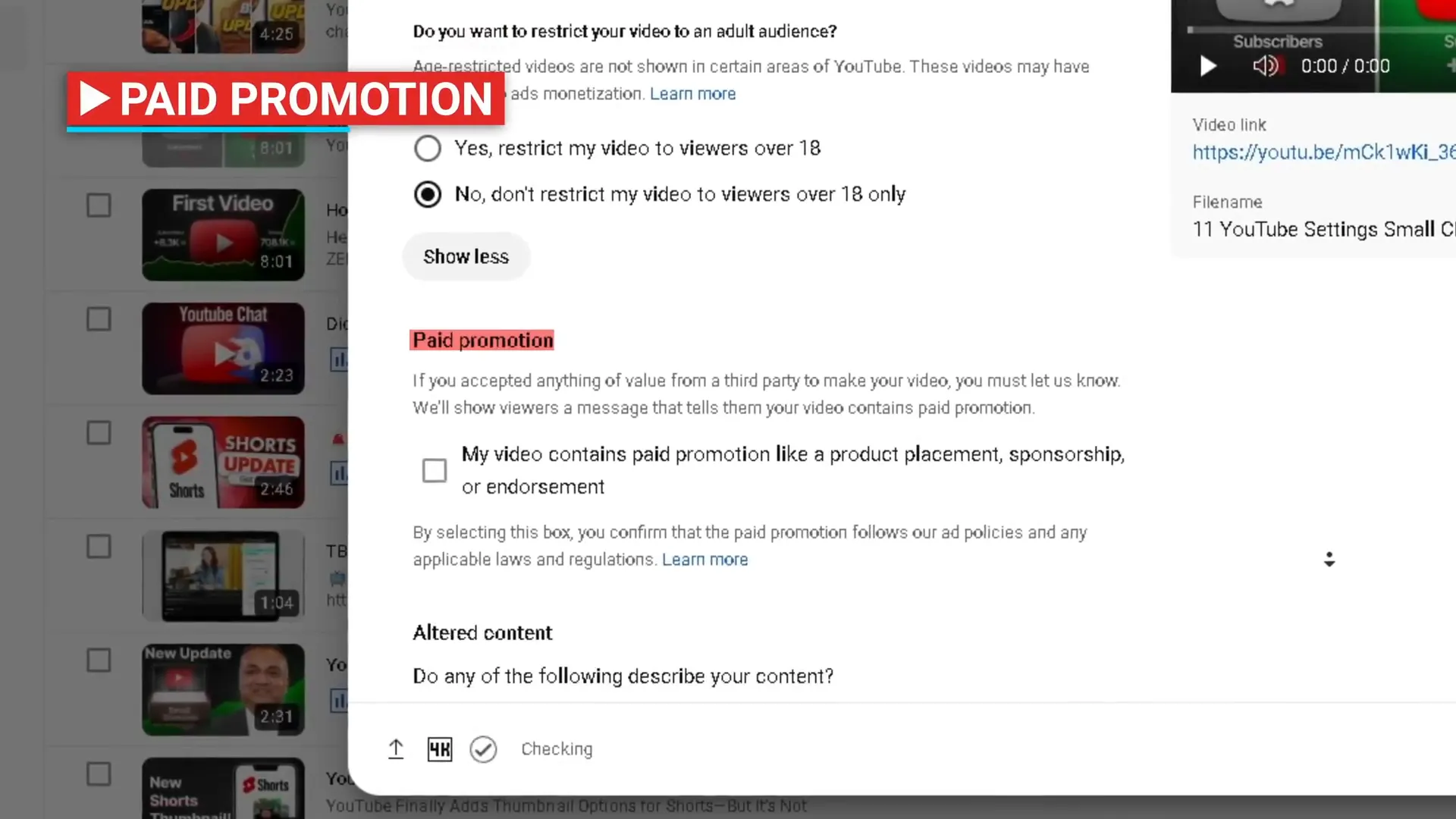
If your video includes paid promotions, you must check the appropriate box to comply with YouTube policies.
With the rise of realistic AI content, pay attention to updated YouTube AI rule. Label videos that contain altered or synthetic content that appears real. You should select “yes” if your video:
- Makes a real person appear to do or say something they didn’t
- Alters footage from a real event or place
- Generates a realistic scene that didn’t actually happen
Importantly, selecting this option will not affect your video’s discoverability or recommendations.
Use chapters to boost search visibility
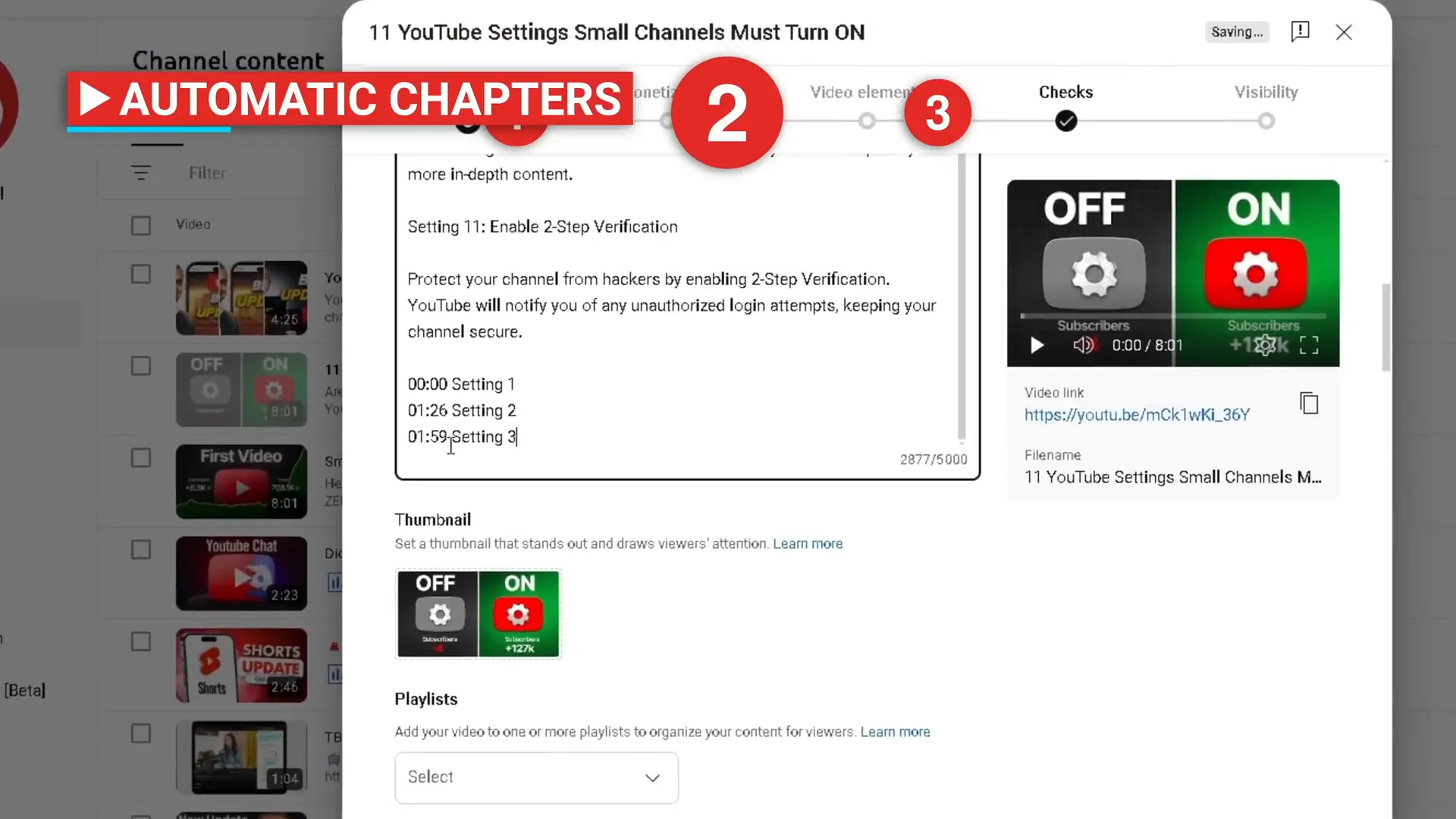
Video chapters break your video into sections with their own previews, improving navigation and searchability. You can choose to upload without chapters, add them manually, or let YouTube generate them automatically.
Because automatic chapters are often inaccurate, it’s best to add chapters manually. This lets you include targeted keywords in chapter titles, which show up in search results and help viewers jump directly to the parts they want.
Use featured places and automatic concepts
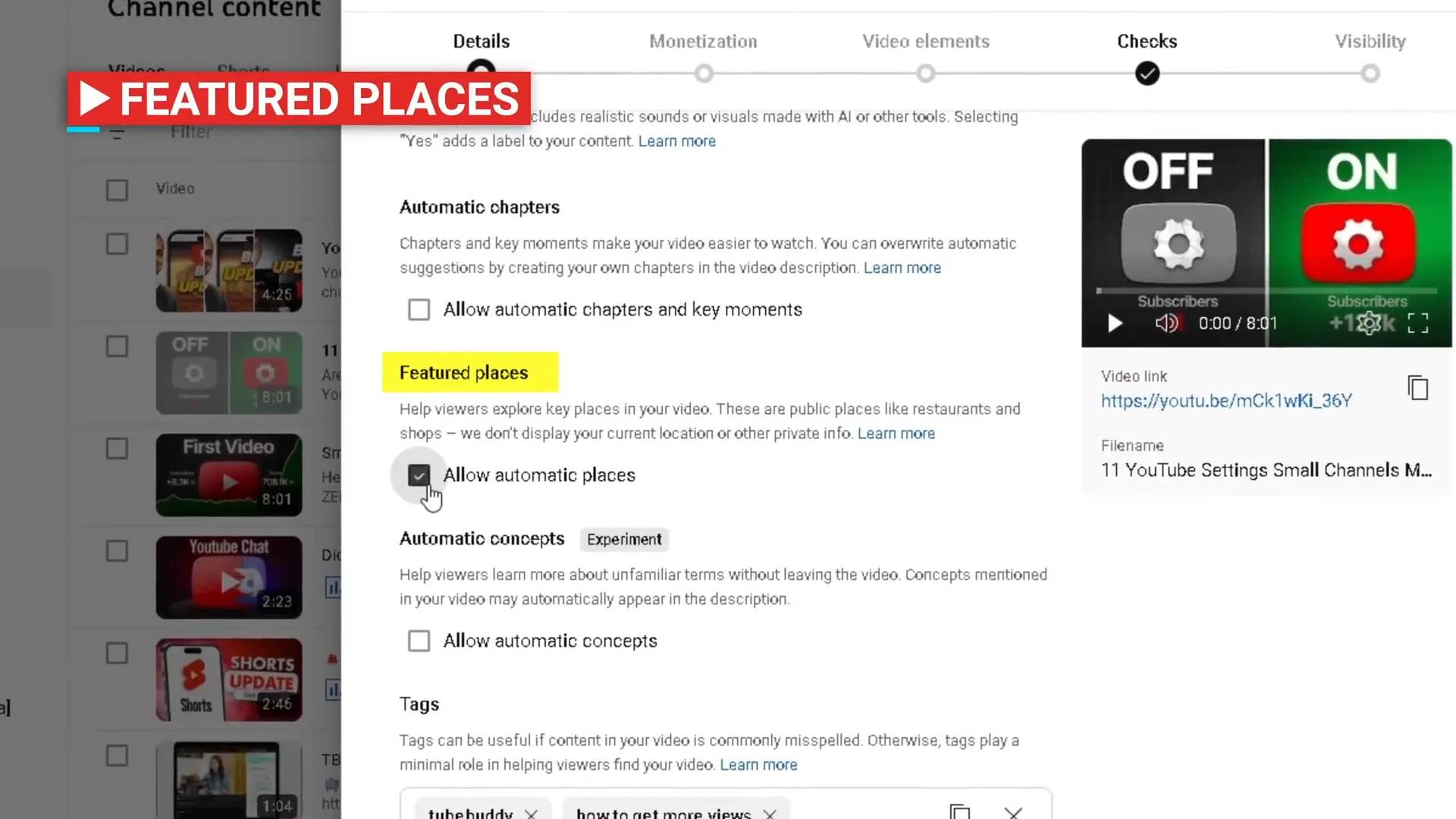
If your video mentions specific locations, enabling “featured places” highlights these destinations in your video description with a carousel of key places. This is particularly useful for travel channels.
The “allow automatic concepts” setting uses machine learning to identify key topics and provide additional information like images or text snippets, which is beneficial for educational videos.
Add tags to help new channels get discovered
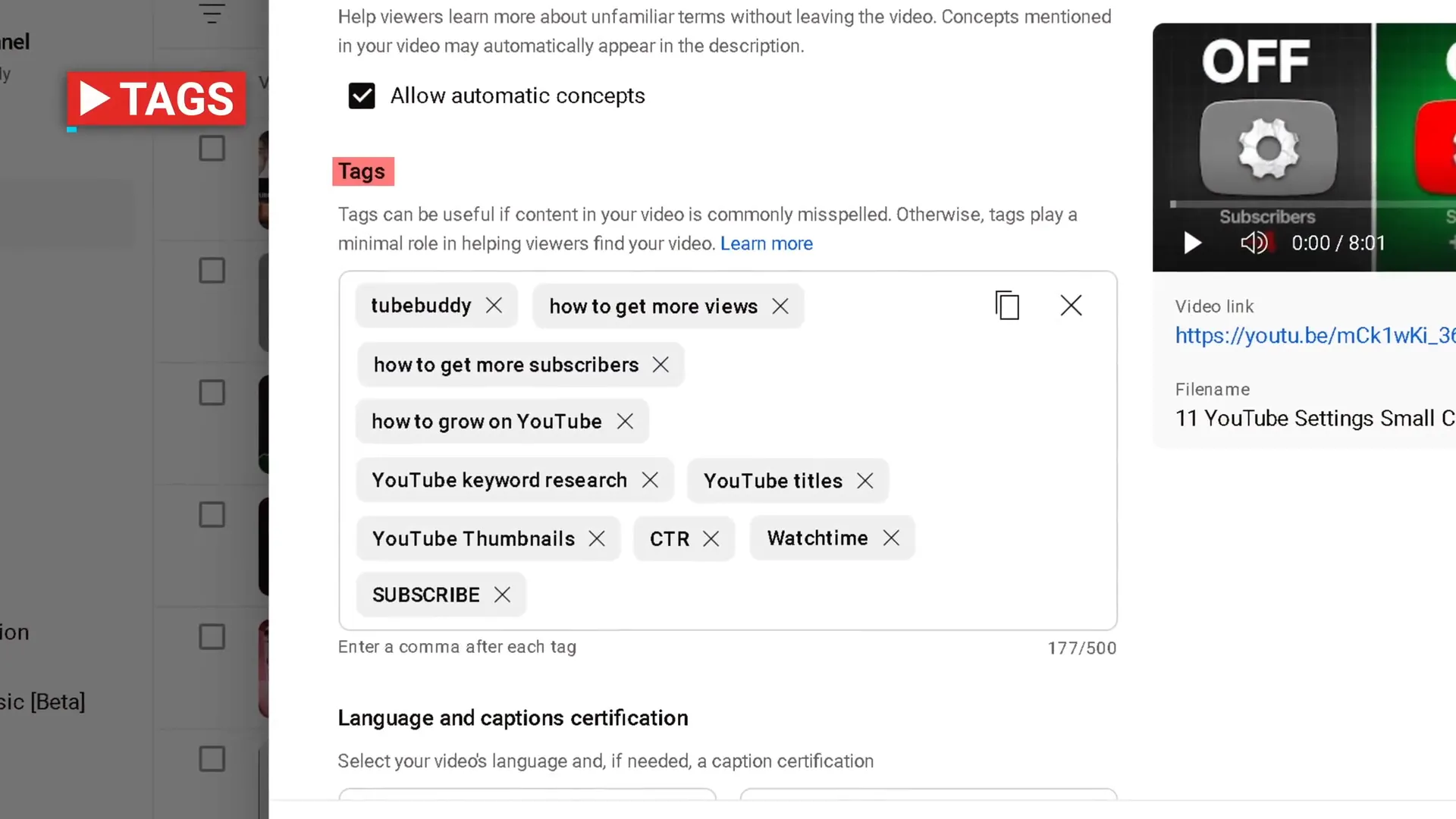
Tags are keywords that help viewers find your content, especially if they make spelling errors during search. For larger channels, tags are less critical, but for newer creators, they are very important.
Use a mix of broad and specific tags to reach wider and more targeted audiences. For example, a workout video might use broad tags like “healthy lifestyle” and specific tags like “stress relief.”
Know the extra settings but don’t overcomplicate
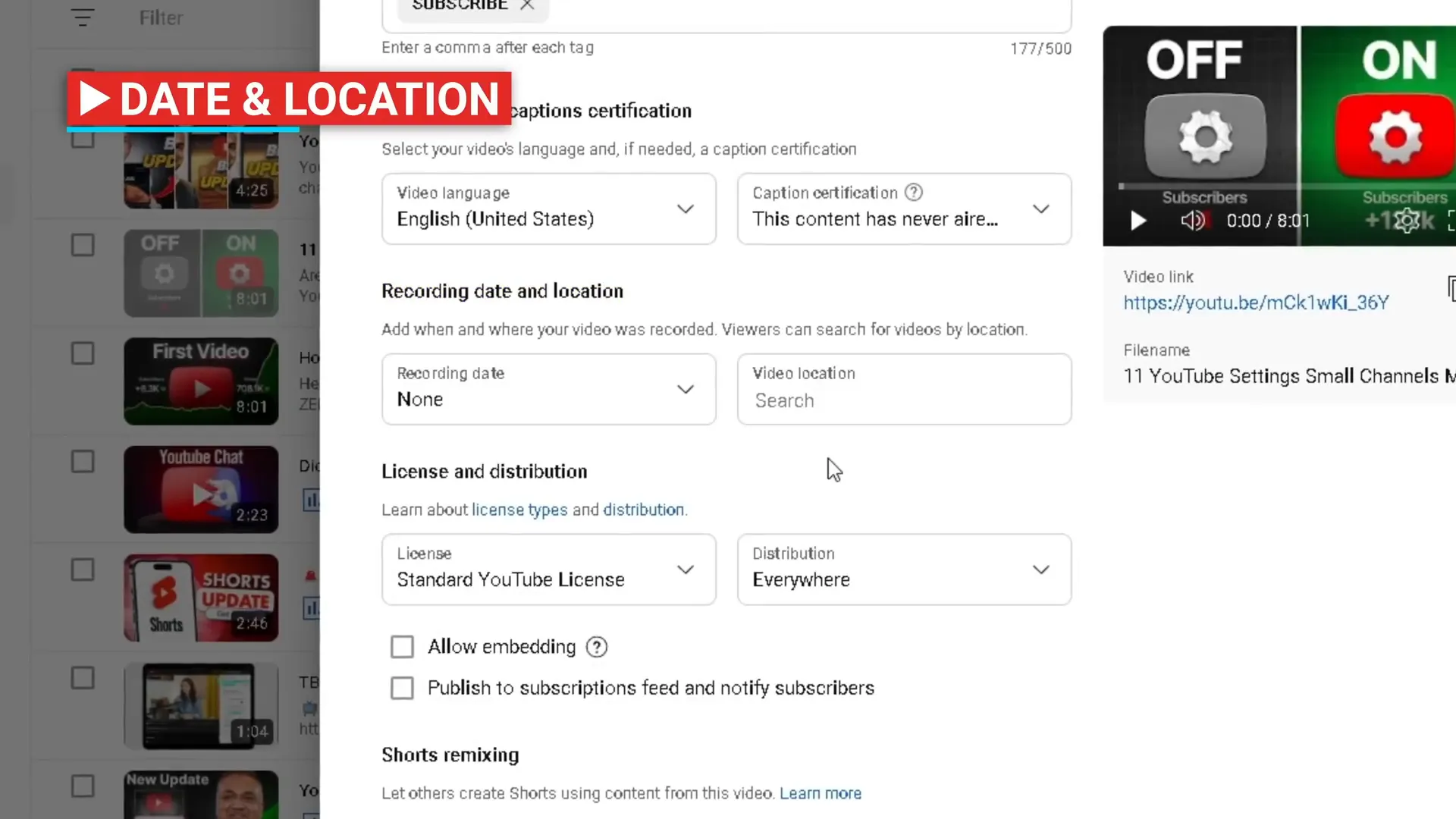
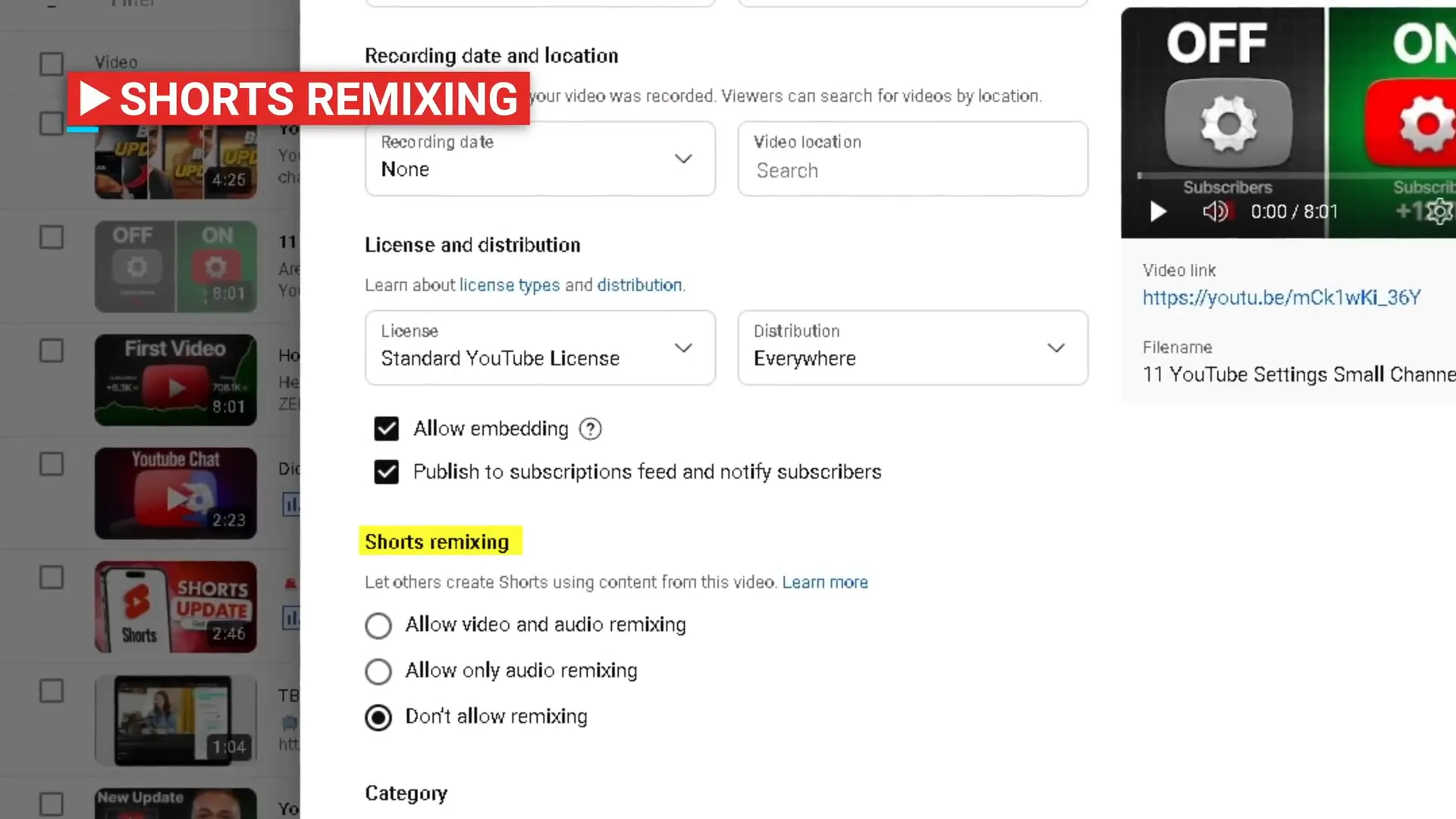
Most extra features like language, location, and license don’t significantly impact video performance. It’s typically best to keep the standard YouTube license and allow embedding so others can share your video on their websites.
Make sure to check “publish a subscription feed and notify subscribers” so your subscribers get notified and see your video in their feed.
Enable shorts remixing for extra exposure
Allowing video and audio remixing lets viewers create Shorts using parts of your video. YouTube links these Shorts back to your original video, driving additional traffic and exposure.
Choose the right category and manage comments
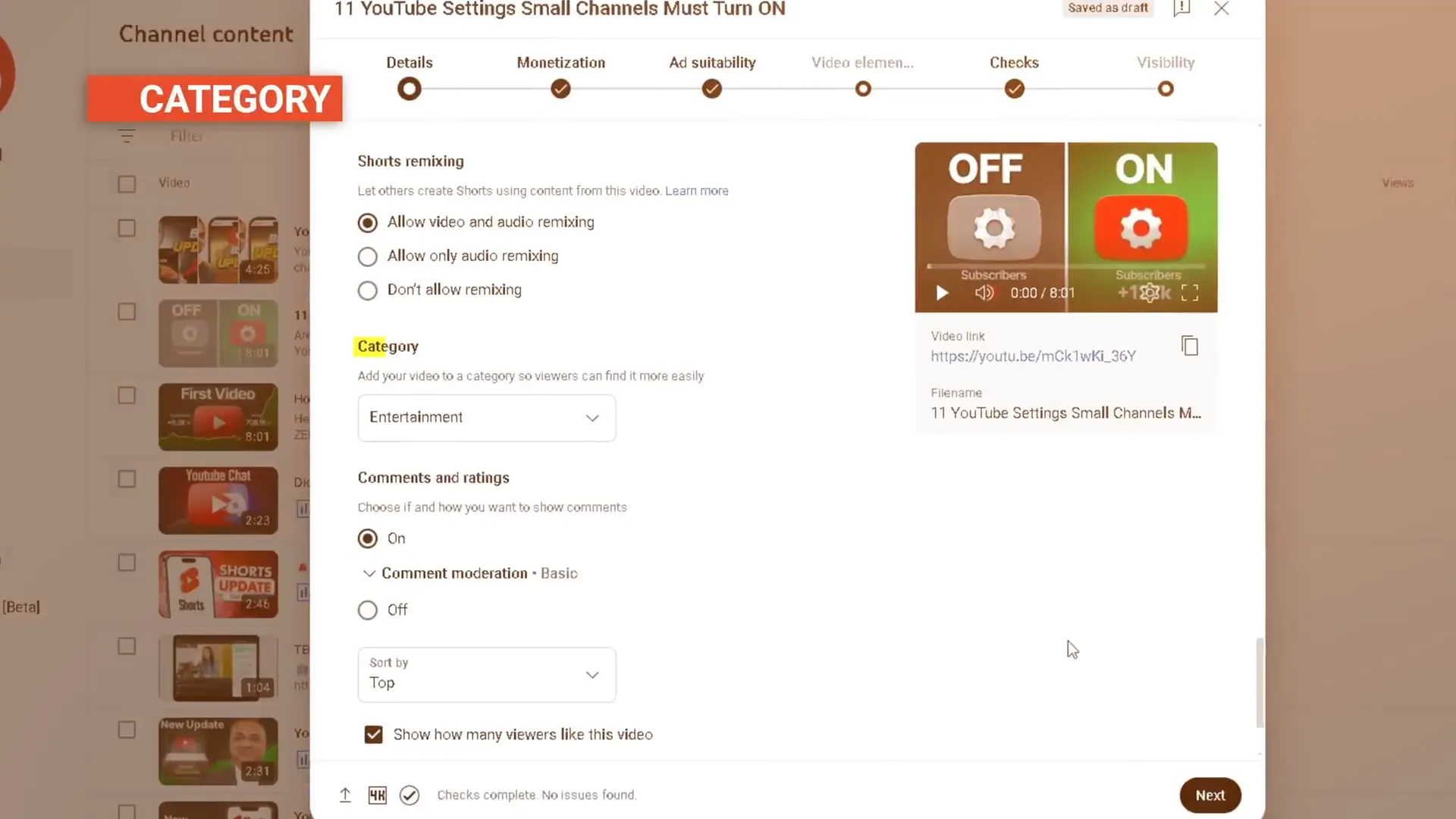
Select the most accurate category to help YouTube show your video to the right audience.
Keep comments enabled to boost engagement, and use basic moderation to automatically flag inappropriate comments. Avoid overly strict settings as they can require excessive manual approval. Sort comments by “top” to highlight the most interesting ones first.
Use monetization settings wisely
If you’re part of the YouTube Partner Program, you can enable monetization for your videos. However, YouTube can run ads on your content regardless of your setting, so it’s generally best to keep monetization on to earn revenue.
Ad suitability lets you self-certify your video’s content type. Be honest here—incorrect certification can lead to removal from the Partner Program.
Add video elements like end screens to increase views
Use video elements such as music, subtitles, cards, and end screens. End screens are especially valuable as they promote other videos, playlists, or encourage subscriptions during the last five to 20 seconds of your video.
For example, adding a related video to your end screen can generate thousands of extra views by directing viewers to more of your content.
Check for copyright issues before publishing
YouTube runs checks for copyright claims and duplicate content during upload. If issues arise, you can review and fix them before publishing to avoid problems.
Publish strategically for maximum views
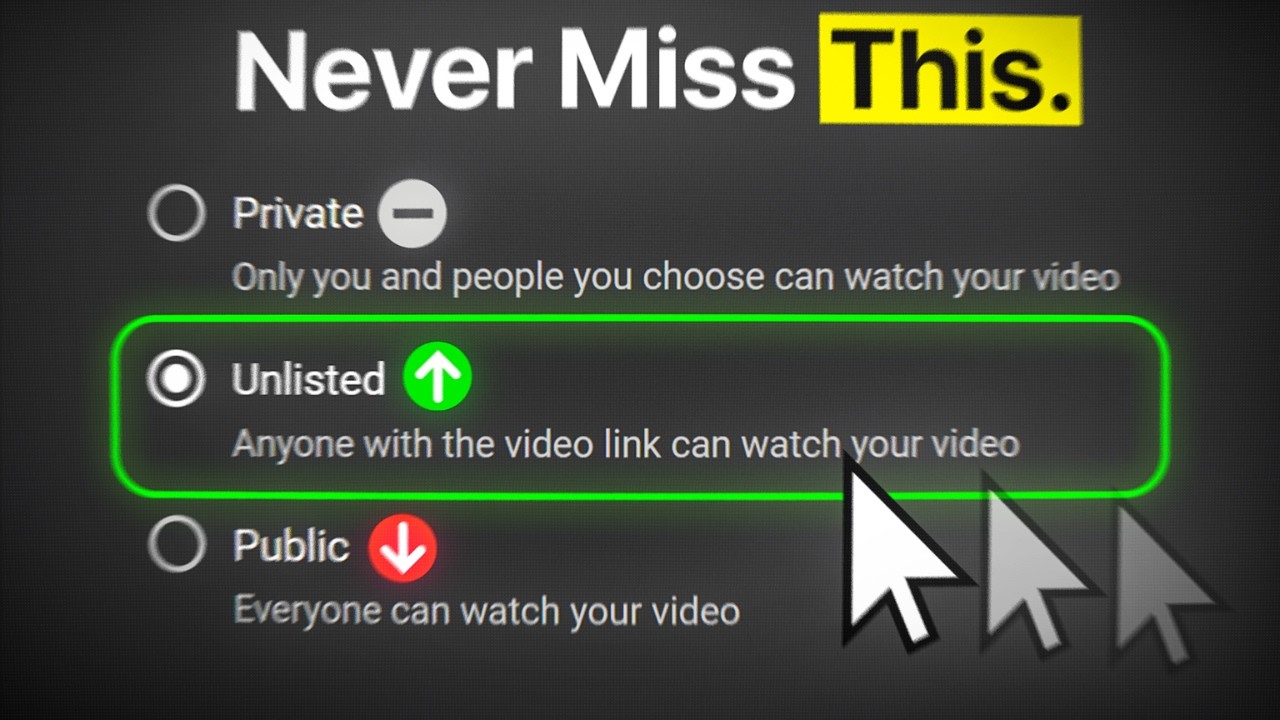
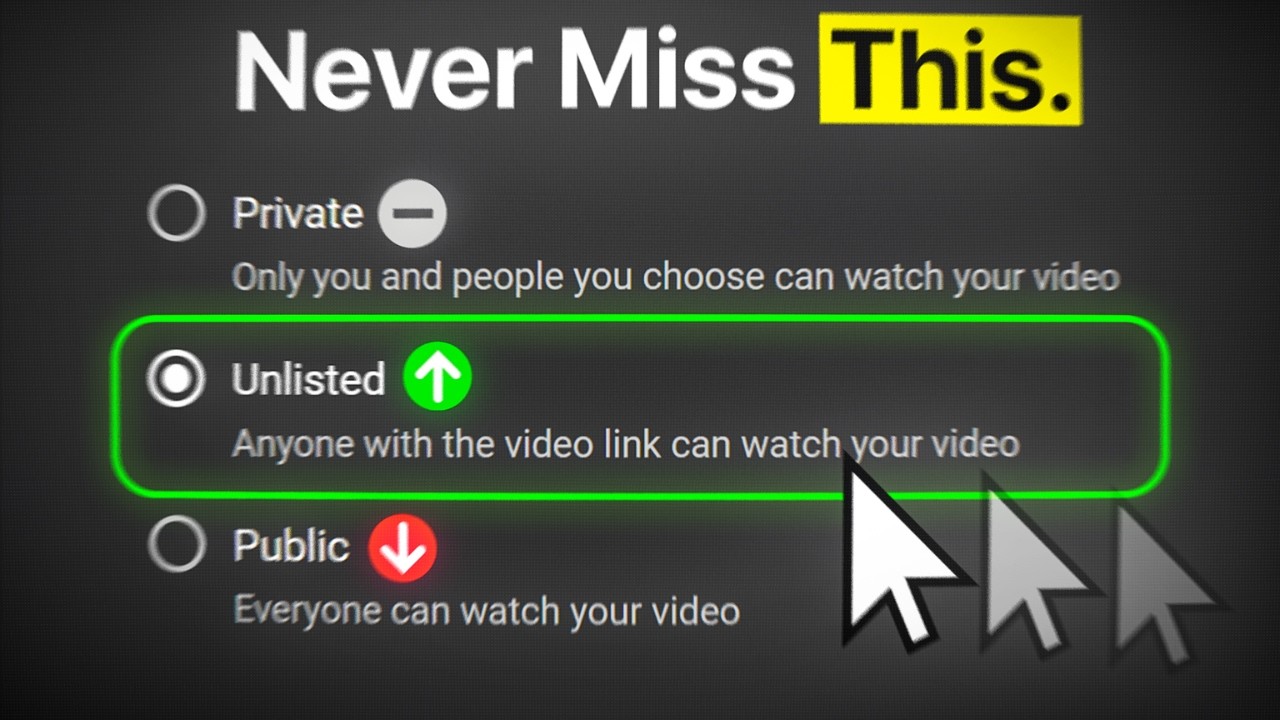
Don’t hit “public” immediately after upload. Instead, set your video to “unlisted” first to perform quality checks and allow the highest quality version to process. Once ready, switch to public or schedule your video to go live at a specific time.
This approach ensures your video is polished and ready to reach the maximum audience.
Final thoughts: optimize YouTube videos for more views
Uploading YouTube videos for more views involves attention to detail and using every available tool to optimize your content. From titles and thumbnails to chapters and monetization, these steps can dramatically increase your video’s reach.
For more insights and tips on growing your YouTube presence, check out the official YouTube blog and stay tuned to the Tubebuddy blog for tips, tricks, and strategies to grow your YouTube channel.
Master these upload strategies and watch your videos gain the attention they deserve!
Get an unfair advantage on YouTube
Give your YouTube channel the upper hand and easily optimize for more views, more subs, and more of every metric that matters.





